01
One session, any device
Laptop, terminal and phone all attach to the same running session. Start something on one, carry on from another.
remote claude · setup guide
Put Claude Code on a VPS, then use the same session from your laptop, a terminal, or your phone. It keeps running when you disconnect, and it can run agents that start their own agents. This is the whole setup, copy-paste.
why · the idea
Claude Code does its thinking on Anthropic's servers, not your machine — so where the process actually runs barely affects speed. Move it onto a small server that never sleeps or loses WiFi, and you can connect from anywhere, leave it working, and come back to it later.
Laptop, terminal and phone all attach to the same running session. Start something on one, carry on from another.
Dispatch background agents from one place; each can spin up its own workers. You watch the tree and steer.
It runs in an isolated container — no host access, no open ports — so it can't reach anything else on the box.
Lose signal or close the lid and the work continues. Reconnect and you're back where you left off.
proof · it's running
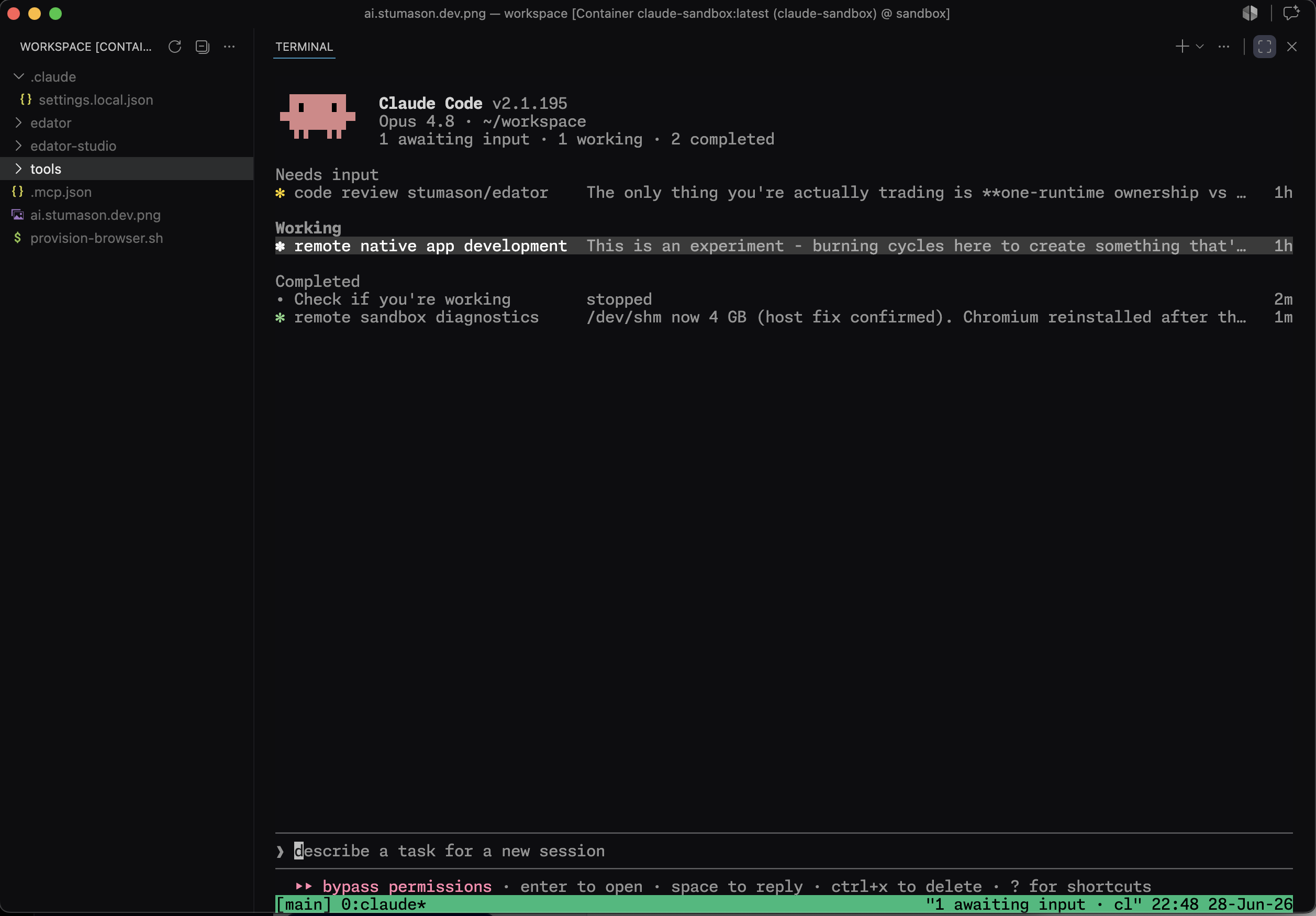
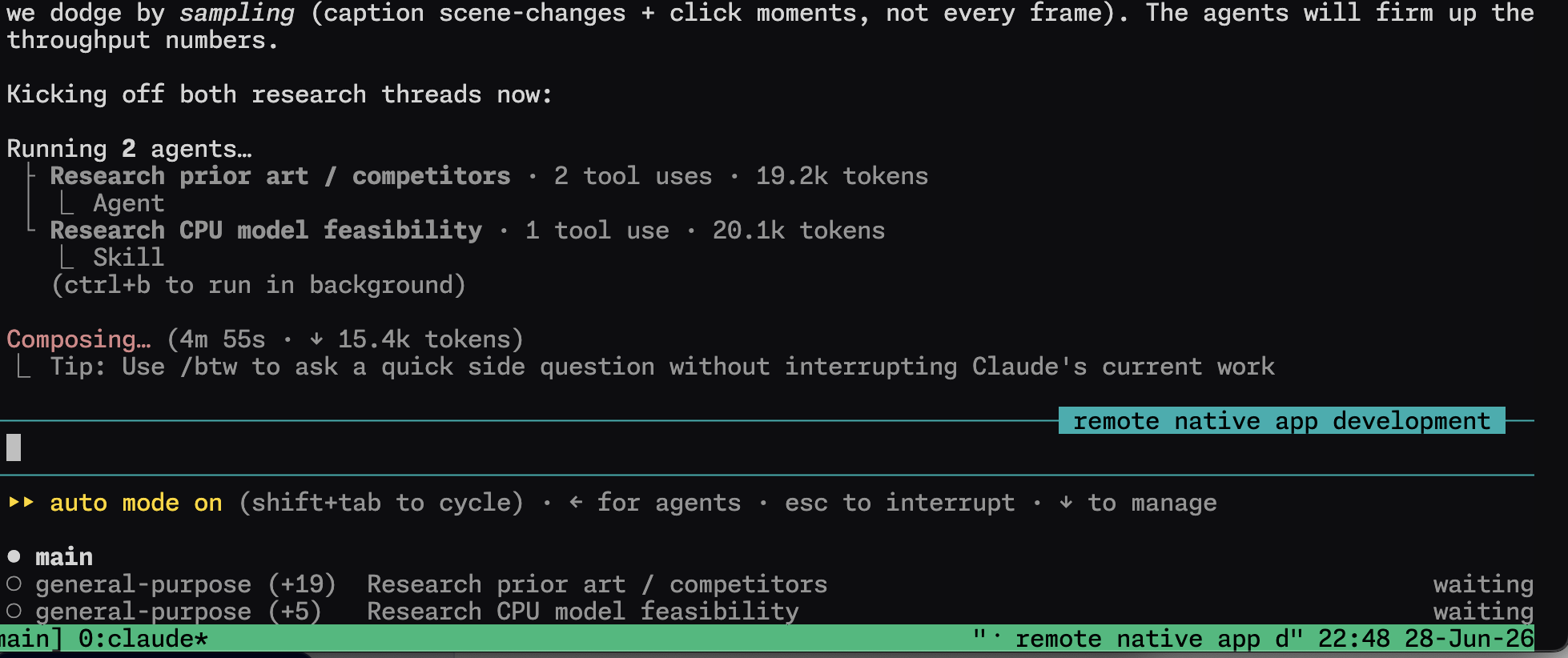
Left: the agent fleet view inside VS Code, attached to the container on the server. Right: a single session running two agents at once, each starting its own workers.
architecture · how it fits together
setup · copy-paste
You'll need a VPS with Docker, a Claude Pro/Max plan, a free Tailscale account, and an SSH app on your phone.
A VS Code (code-server) base with Claude Code and your toolchain baked in. Bake what you actually use — anything you apt install at runtime is lost on the next rebuild.
FROM codercom/code-server:latest
USER root

# Node 22 (Claude Code), git, ripgrep, tmux, gh CLI, headless Chromium
RUN apt-get update && apt-get install -y --no-install-recommends \
      curl git ripgrep ca-certificates less tmux chromium fonts-liberation \
  && curl -fsSL https://deb.nodesource.com/setup_22.x | bash - \
  && apt-get install -y nodejs \
  && npm install -g @anthropic-ai/claude-code \
  && curl -fsSL https://cli.github.com/packages/githubcli-archive-keyring.gpg \
       -o /usr/share/keyrings/gh.gpg && chmod go+r /usr/share/keyrings/gh.gpg \
  && echo "deb [signed-by=/usr/share/keyrings/gh.gpg] https://cli.github.com/packages stable main" \
       > /etc/apt/sources.list.d/github-cli.list \
  && apt-get update && apt-get install -y gh \
  && apt-get clean && rm -rf /var/lib/apt/lists/*

# Dev stack: media, PHP 8.4 + Composer, Python, DB clients, utils, yt-dlp
RUN apt-get update && apt-get install -y --no-install-recommends \
      ffmpeg imagemagick \
      php8.4-cli php8.4-mbstring php8.4-xml php8.4-curl php8.4-zip php8.4-bcmath \
      php8.4-intl php8.4-gd php8.4-pgsql php8.4-sqlite3 php8.4-mysql php8.4-redis \
      python3-pip python3-venv pipx \
      sqlite3 postgresql-client redis-tools jq build-essential rclone \
  && curl -fsSL https://getcomposer.org/installer | php -- \
       --install-dir=/usr/local/bin --filename=composer \
  && curl -fsSL https://github.com/yt-dlp/yt-dlp/releases/latest/download/yt-dlp \
       -o /usr/local/bin/yt-dlp && chmod a+rx /usr/local/bin/yt-dlp \
  && apt-get clean && rm -rf /var/lib/apt/lists/*

RUN mkdir -p /home/coder/workspace && chown -R coder:coder /home/coder
USER coder
Volumes keep your login, history and files across restarts. No docker.sock and no host mounts, so the container can't reach the rest of the machine.
services:
  claude-sandbox:
    build: .
    container_name: claude-sandbox
    working_dir: /home/coder/workspace
    shm_size: '4gb'              # headless Chrome needs it (RAM, not disk)
    restart: unless-stopped
    volumes:
      - ./workspace:/home/coder/workspace
      - claude:/home/coder/.claude        # login + history persist
      - cfg:/home/coder/.config           # gh + tmux config persist
volumes: { claude: , cfg: }
docker compose up -d --build
Generate a token on a machine with a browser (a headless server can't complete the login callback), then give it to the container. It uses your subscription — no API key, no per-token billing.
claude setup-token # logs in via browser, prints a token
# set CLAUDE_CODE_OAUTH_TOKEN=<token> in the container, then for GitHub:
docker exec -it claude-sandbox gh auth login
Tailscale puts your server and devices on one private network. Nothing is exposed to the public internet — you reach the box by its Tailscale name, and only from your own devices.
curl -fsSL https://tailscale.com/install.sh | sh
tailscale up        # open the link it prints, then authorise
A one-line helper drops you into the same tmux session from anywhere — so phone, laptop terminal and VS Code share one running thread.
#!/usr/bin/env bash
exec docker exec -it -u coder claude-sandbox \
     tmux new -A -s main        # attach if it exists, else create
Host sandbox
    HostName <server-tailscale-ip>
    User root
    RequestTTY yes
    RemoteCommand /usr/local/bin/sandbox
Open the fleet view and dispatch background agents; each can start its own workers. Turn on auto mode — a safety classifier auto-approves routine steps but still stops before anything destructive.
{ "permissions": { "defaultMode": "auto" } }
claude agents # the fleet — dispatch, watch, redirect
Put your own machine on Tailscale too, and it's on the same private network as the sandbox — so files go in either direction. Taildrop sends a file straight to a device's Downloads, no SSH keys or shares to set up.
tailscale file cp render.mp4 my-laptop: # lands in Downloads
tailscale file cp brief.pdf claude-sandbox:
For bigger files, artifacts, or a shared drive every device reads and writes, use R2 (or any S3 bucket). rclone is already in the image — point a remote at your bucket and sync both ways.
rclone copy render.mp4 r2:my-bucket/out/     # push from anywhere
rclone copy r2:my-bucket/out ./out           # pull a local clone
security · sensible defaults
Runs non-root, with no docker socket and no host mounts. It can't see or touch the rest of the server.
Everything goes over Tailscale. There's nothing on the public internet to scan or brute-force.
Routine work flows; destructive actions still pause for you. Full bypass stays opt-in, for throwaway work.
Running an agent unattended with real keys? Lock outbound traffic to a short list so nothing can leak.
the point
So the laptop matters a lot less — anything that can open VS Code or an SSH terminal drives it the same way. It runs on your Claude subscription, on a server you rent for around £30 a month, and you can reach it from your phone.